Add Relay to ChatGPT
This takes about two minutes, and you only do it once. Watch the short video, or follow the steps below.
Needs: ChatGPT, on a computer. On a work or school plan, ask your admin.
On a phone or tablet? ChatGPT and Claude let you add Relay only on a computer. See what to do
Opens ChatGPT in a new tab.
- Step 1
If ChatGPT asks you to log in, log in to your own ChatGPT account first. That’s separate from Relay. Then ChatGPT opens on its Plugins page. Click Add, at the top right, then Add custom MCP server. That’s just ChatGPT’s name for a new connection.
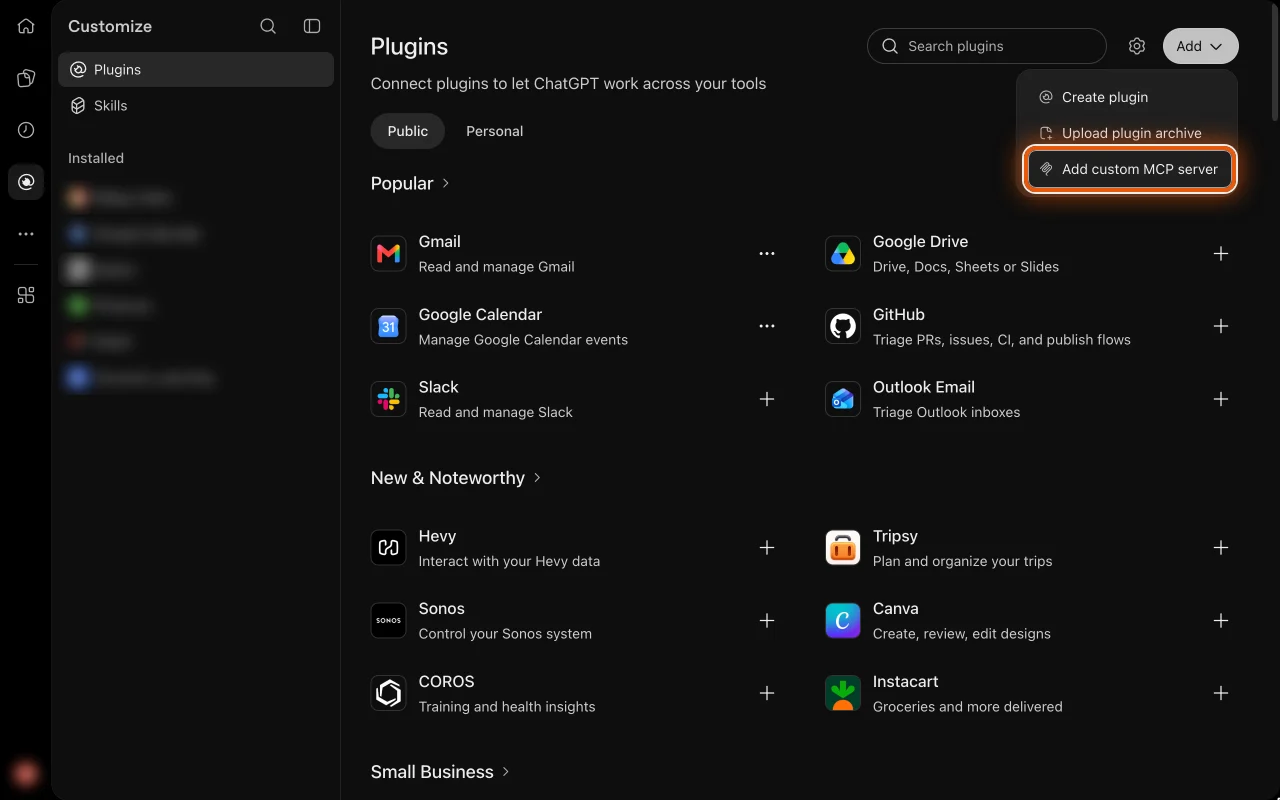 Bigger picture of step 1Smaller picture of step 1
- Step 2
Type Relayz, with a z at the end, as the name. Then click in the Connection box and paste. We already copied Relay’s link for you. Check that it says https://relayz.ai/mcp, and leave everything else as it is.
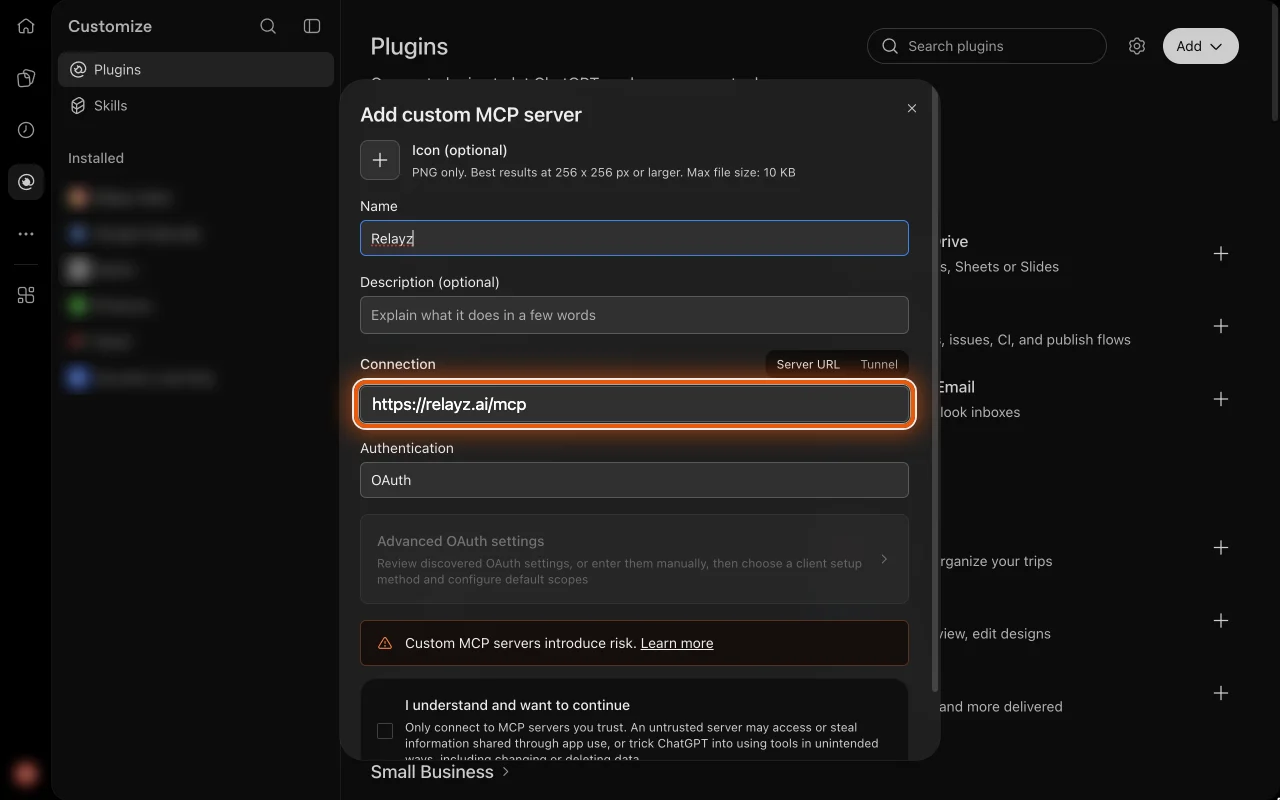 Bigger picture of step 2Smaller picture of step 2
- Step 3
Scroll down, tick I understand and want to continue, and click Create as a plugin. ChatGPT shows this warning for every app added this way, so don’t worry.
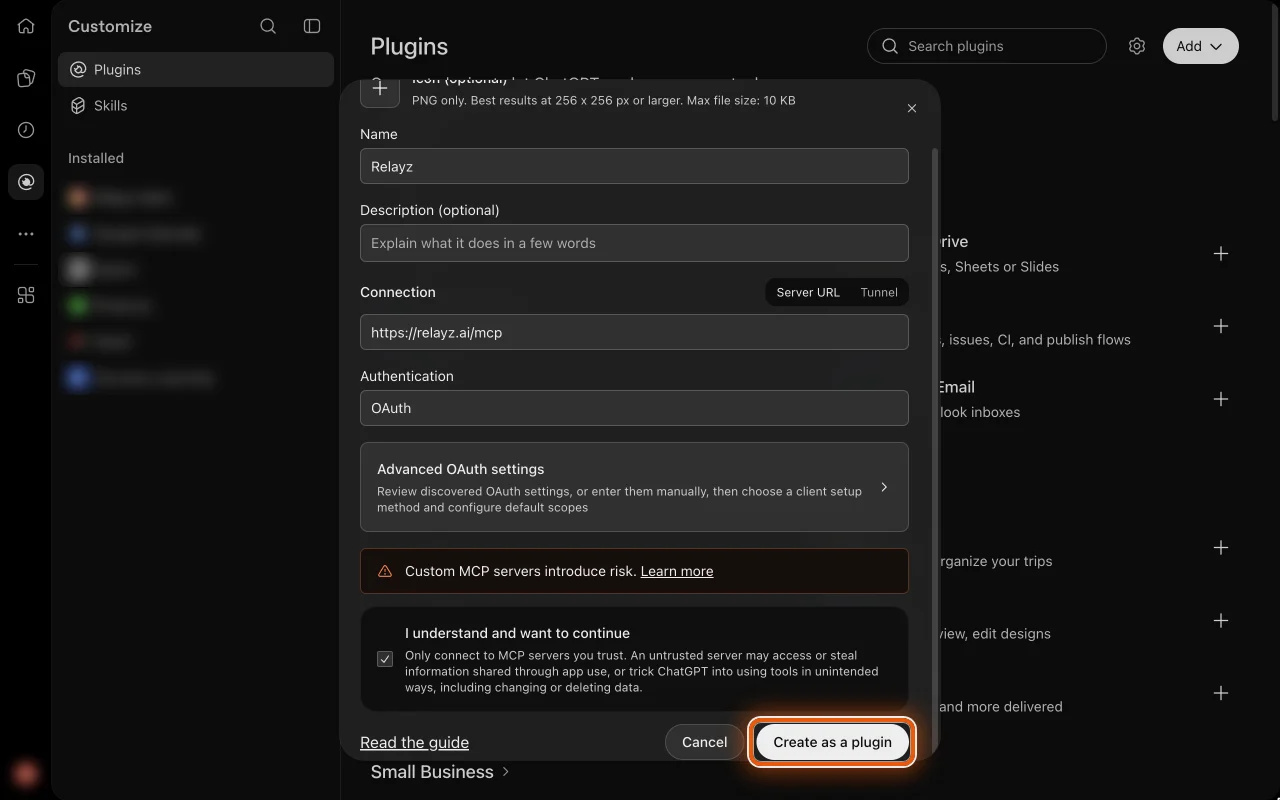 Bigger picture of step 3Smaller picture of step 3
- Step 4
One more box appears. Click Connect Relayz.
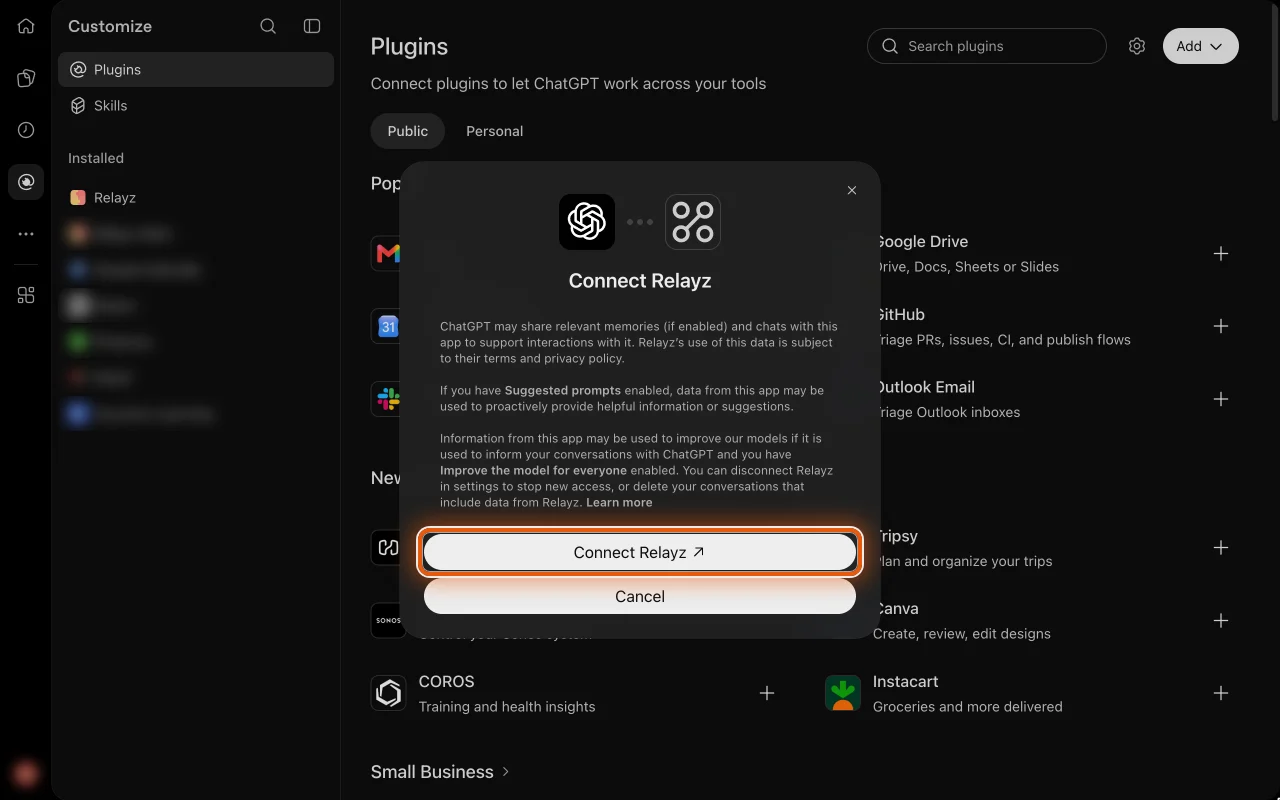 Bigger picture of step 4Smaller picture of step 4
- Step 5
A Relay page opens. Sign in with Google or your email.
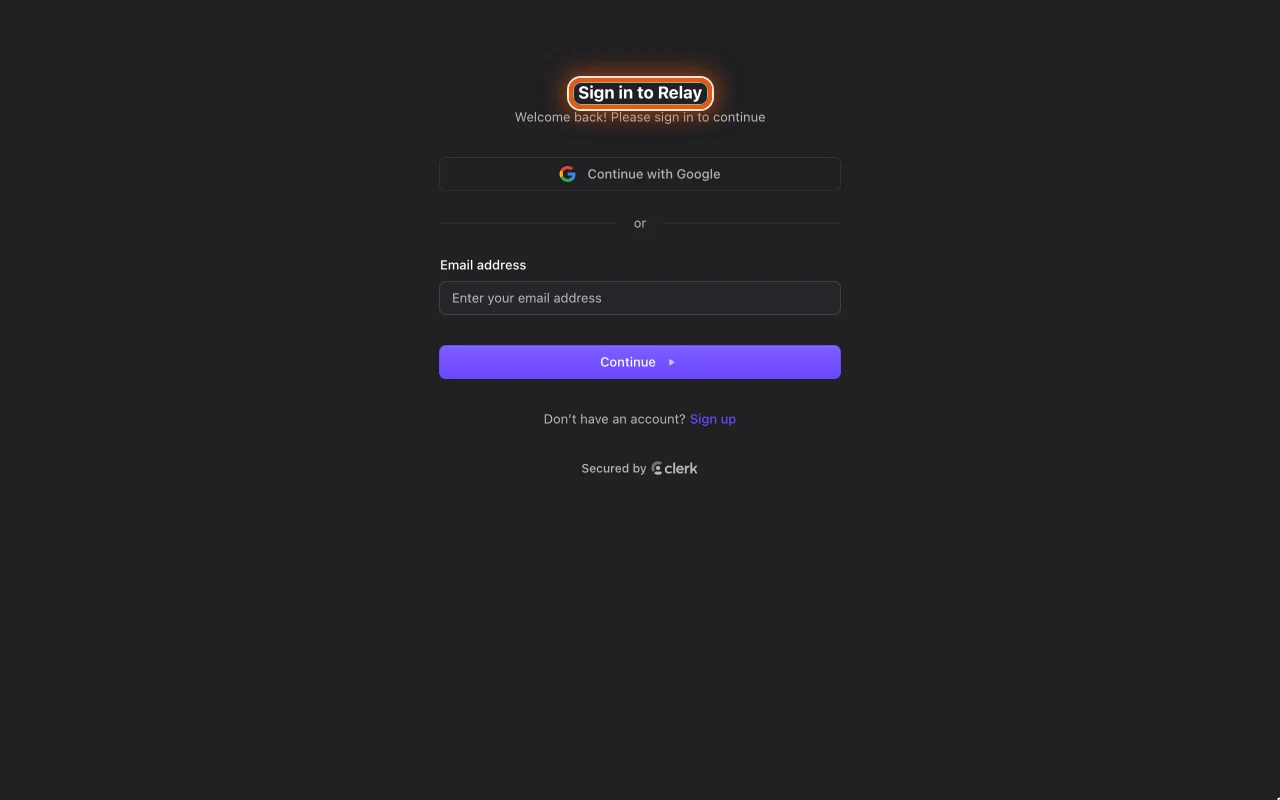 Bigger picture of step 5Smaller picture of step 5
- Step 6
Relay asks whether ChatGPT may use your notebook. Check that it says chatgpt.com and shows your email, then click Allow.
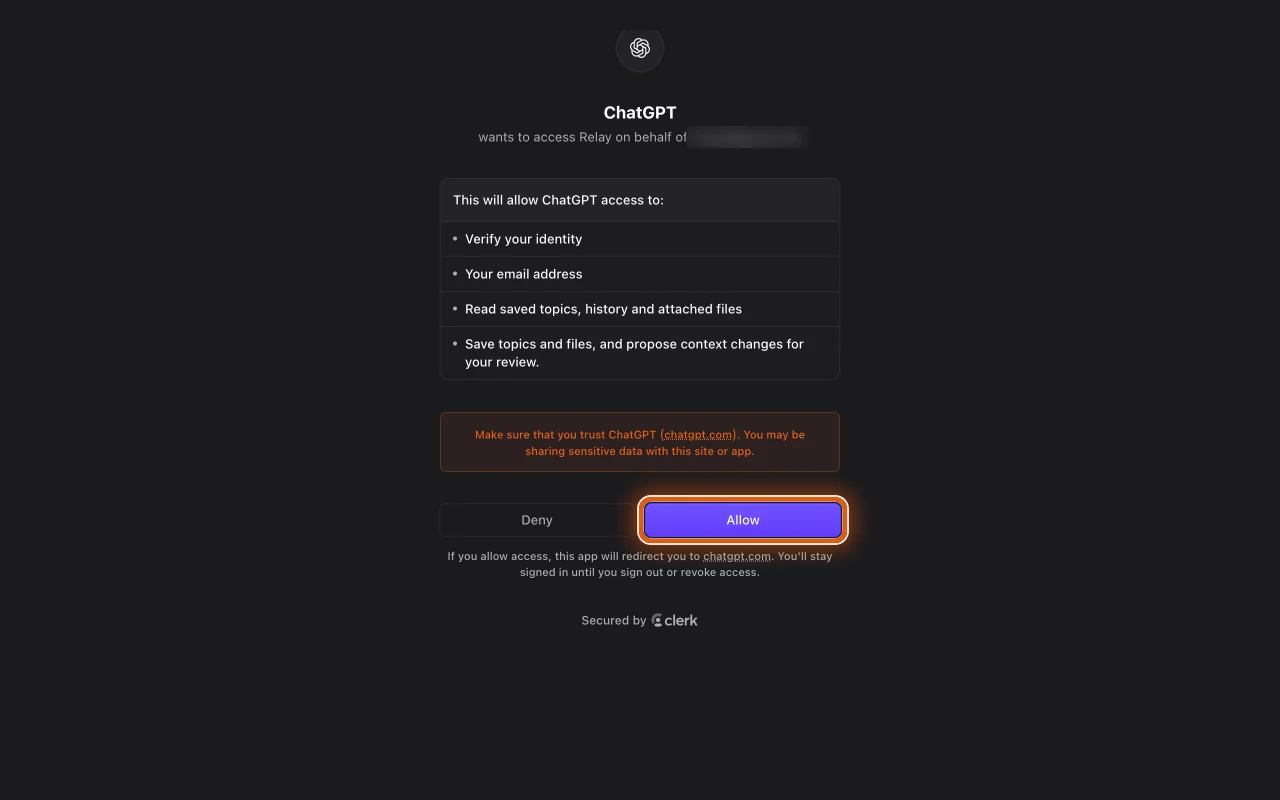 Bigger picture of step 6Smaller picture of step 6
- Step 7
Go back to ChatGPT. Click Relayz under Installed, then Try in chat, and say hi to @Relayz. Relayz shows you what to try.
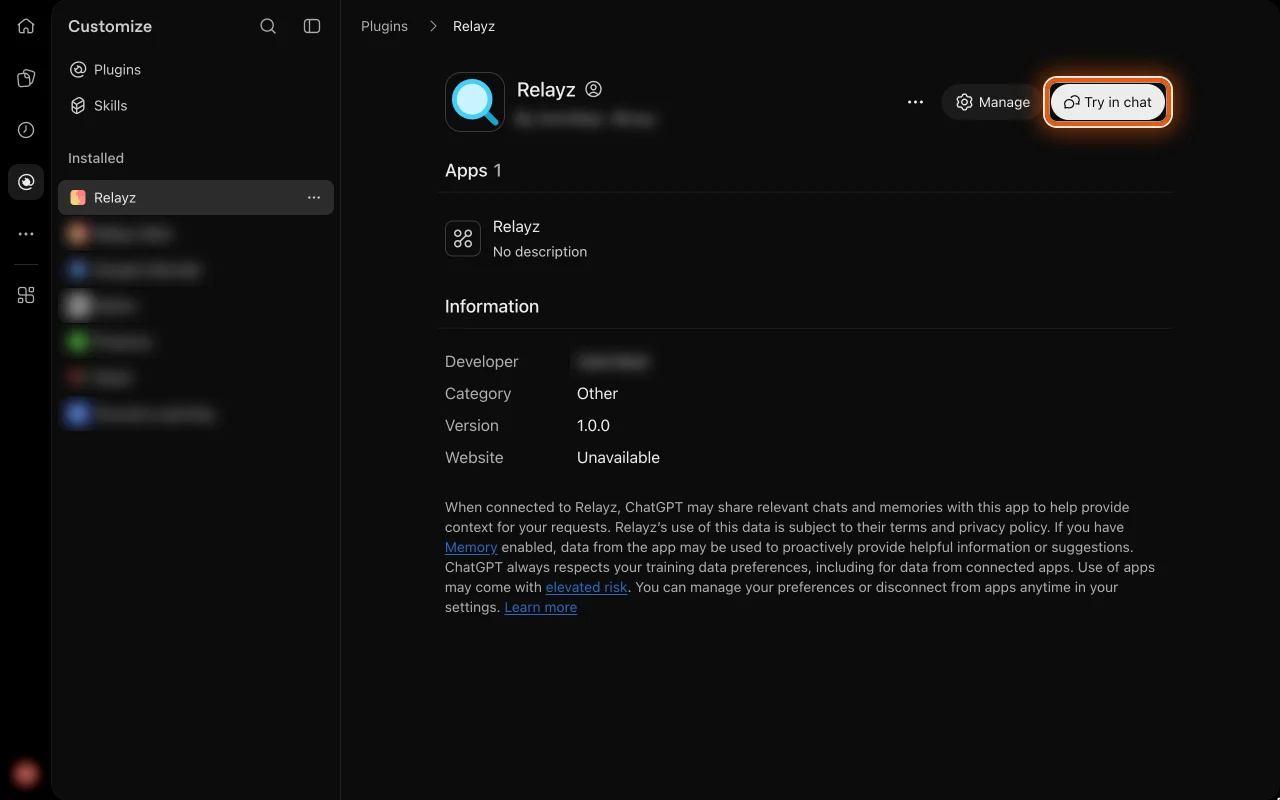 Bigger picture of step 7Smaller picture of step 7
Next time, start a new chat. Type @Relayz, pick Relayz, then say what to remember.
Get help
Something went wrong?
- If Relay’s page names anything other than exactly chatgpt.com, even something that starts with it like chatgpt.com.example, or shows another email, click Deny.
- Not sure about a warning? You can stop at any step. Nothing is shared until you click Allow.
- No Add button, or no Add custom MCP server? Your ChatGPT may look different. Don’t change your plan. Get help.
- Paste doesn’t work? Right-click the Connection box and choose Paste. On a Mac, you can also hold Control and click.
- ChatGPT says the name is taken? Check that you typed Relayz, with a z: ChatGPT already has a different app called Relay. Still taken? You added Relayz before. Click Relayz under Installed, then Try in chat, and say hi. Or remove the old Relayz in ChatGPT (Relayz, then Manage) and start again.
- Relay’s page showed another email? ChatGPT signed in to Relay with another email. Remove Relayz in ChatGPT (Relayz, then Manage). Then start again at step 1 and sign in with the email you want Relay to use.
- Clicked Deny? Nothing was shared. Open Relayz in your plugins and click Connect.
- ChatGPT says Relay hasn’t approved it? Open Apps on relayz.ai and click Approve next to ChatGPT.
- No Try in chat? If you see Install, click that first. If not, start a new chat, type @Relayz and pick Relayz.
- ChatGPT didn’t use Relayz when you said hi? Type @Relayz and pick Relayz first, then say hi again.
- ChatGPT asks before Relay saves anything? Check that it names Relayz, then click Allow.
- ChatGPT says No description or Website Unavailable? That’s fine. Carry on.
- ChatGPT says it can’t save? Your plan may not allow it yet. Get help.
- Nothing opened? Open a new tab and go to chatgpt.com/plugins.
Stuck? Get help