Add Relay to Claude
This takes about a minute, and you only do it once. Watch the short video, or follow the steps below.
On a phone or tablet? ChatGPT and Claude let you add Relay only on a computer. See what to do
Opens Claude in a new tab.
- Step 1
Claude opens in a new tab. If Claude asks you to log in, log in to your own Claude account first. That’s separate from Relay. Relay is then already filled in for you. Claude shows a red warning for any connector added from a link, so don’t worry. Check that the address says relayz.ai, then click Continue. Leave the options on the next screen as they are, then scroll down and click Add.
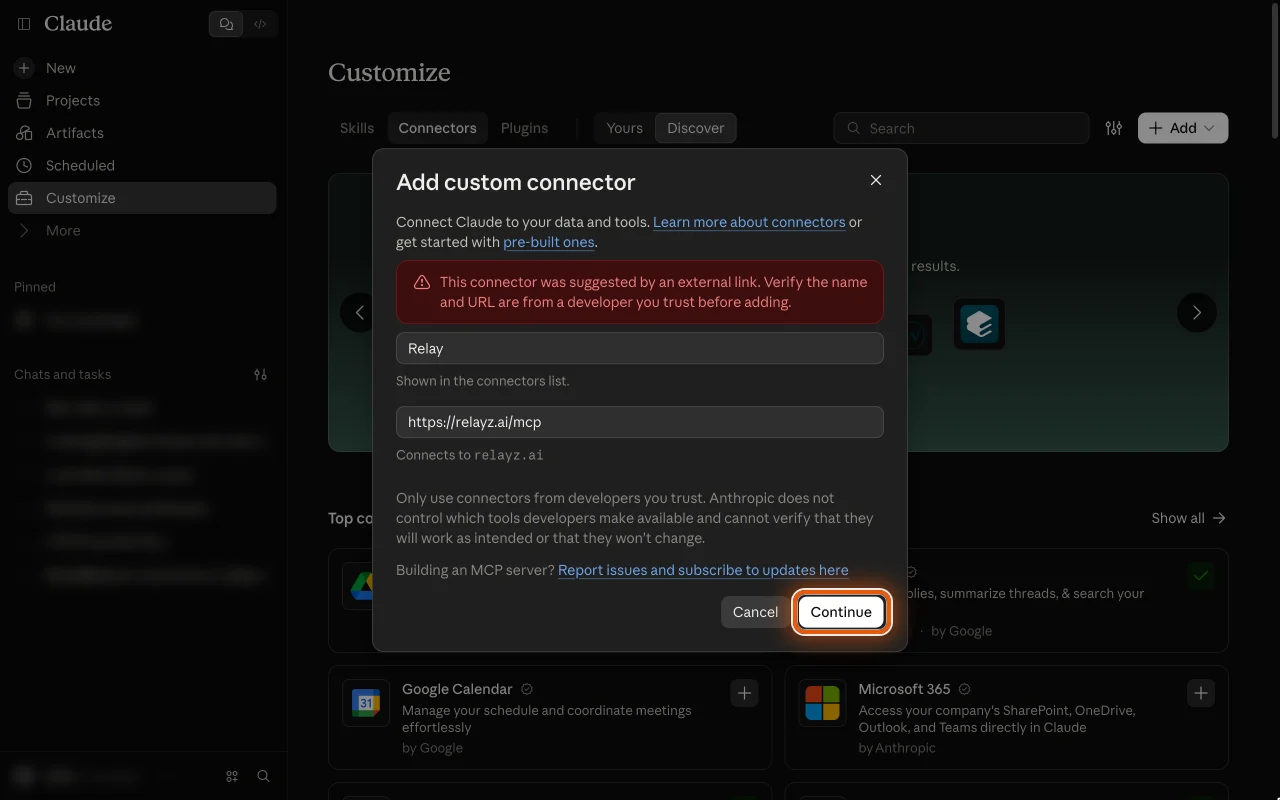 Bigger picture of step 1Smaller picture of step 1
- Step 2
Relay now shows up in Claude. Click Connect.
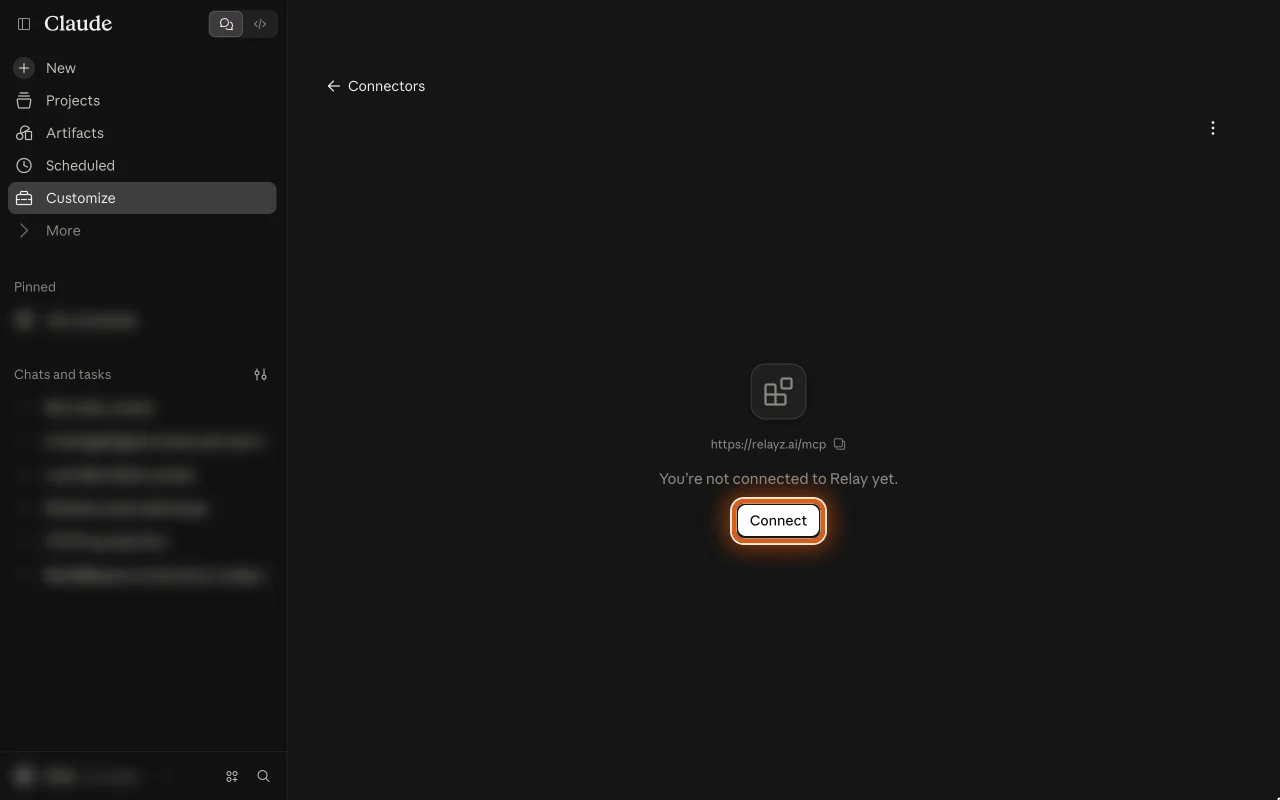 Bigger picture of step 2Smaller picture of step 2
- Step 3
A Relay page opens. Sign in with Google or your email.
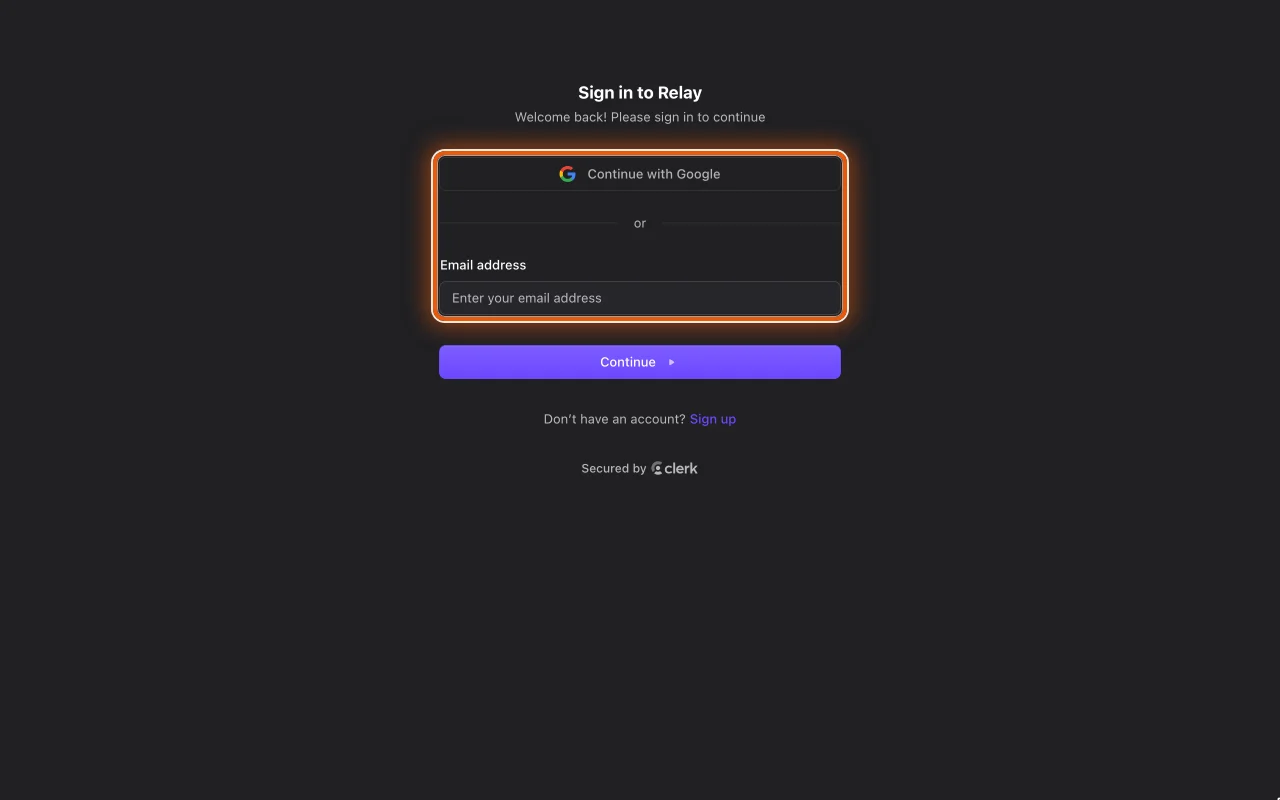 Bigger picture of step 3Smaller picture of step 3
- Step 4
Relay asks whether Claude may use your notebook. Check that it says claude.ai and shows your email, then click Allow.
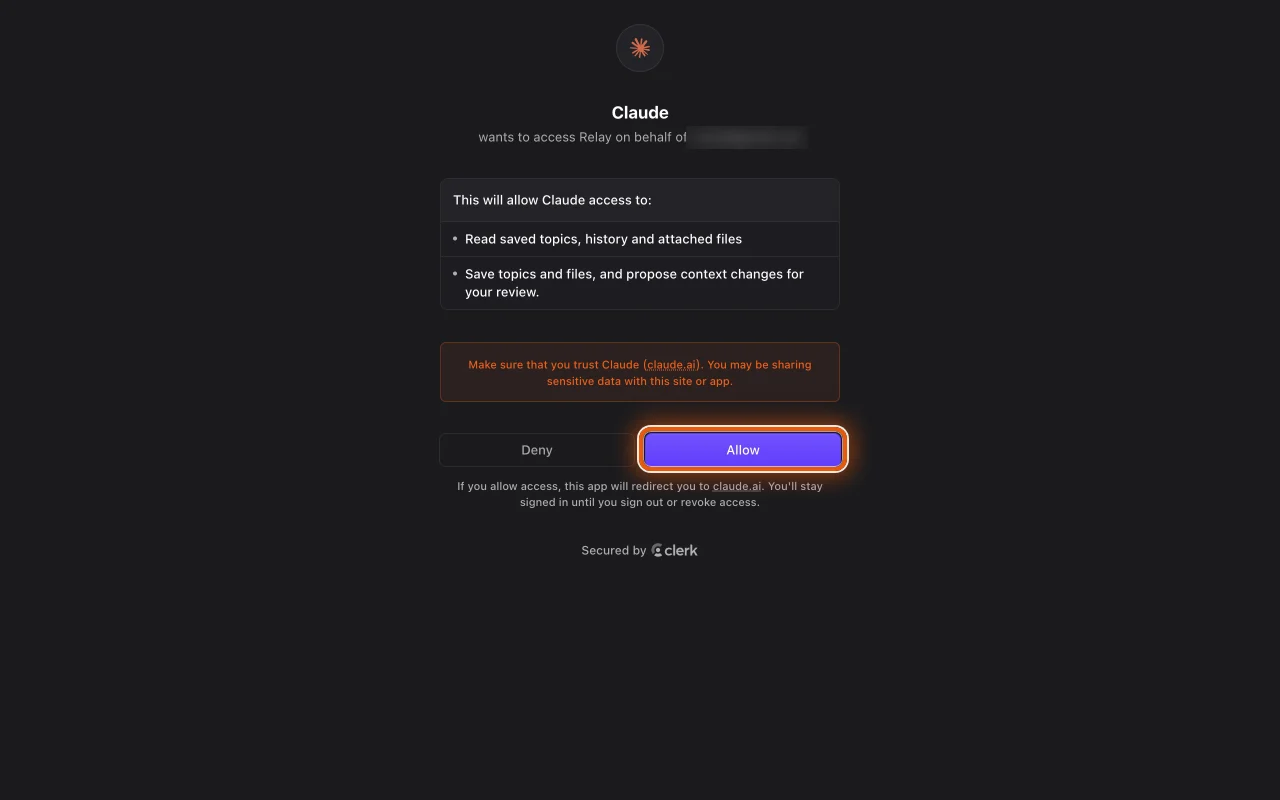 Bigger picture of step 4Smaller picture of step 4
- Step 5
Go back to Claude. Click New and say hi to Relay.
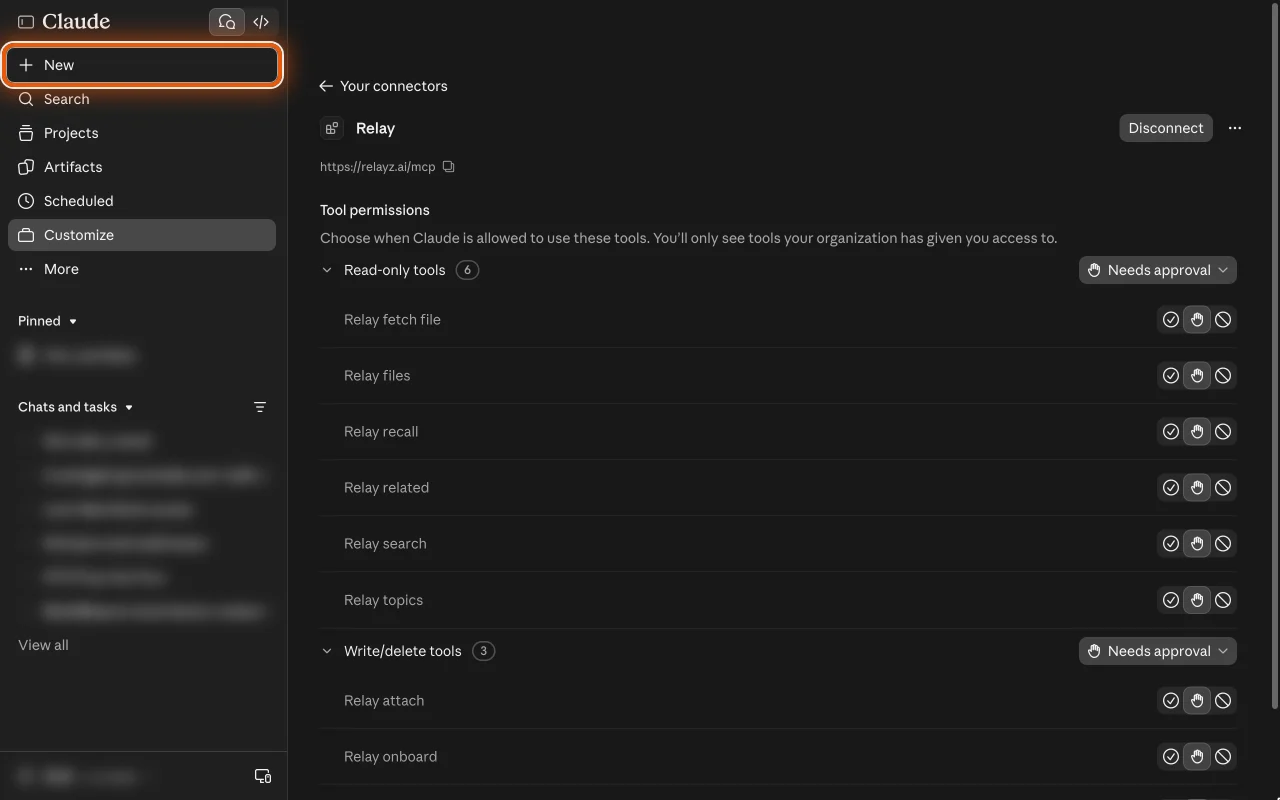 Bigger picture of step 5Smaller picture of step 5
- Step 6
The first time, Claude asks before it uses Relay. Click Always allow. Relay shows you what to try.
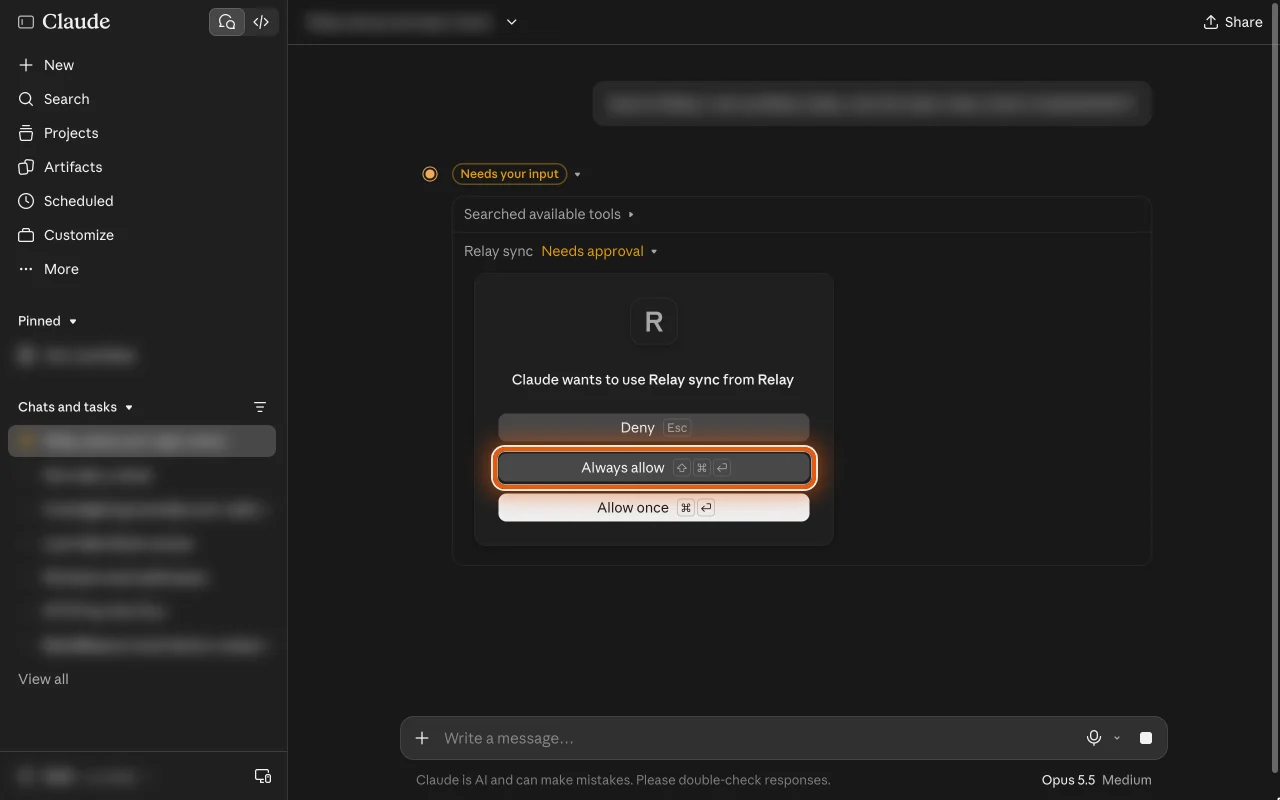 Bigger picture of step 6Smaller picture of step 6
Next time, start a new chat and tell Claude what to remember.
Get help
Something went wrong?
- If Relay’s page names anything other than exactly claude.ai, even something that starts with it like claude.ai.example, or shows another email, click Deny.
- Claude asks you to sign up? Make a free Claude account first. Then the form appears. Claude is for adults 18 and over.
- No form in Claude? Click Customize, then Connectors. Click Add, then Add custom connector. In Name, type Relay, and paste Relay’s link into Remote MCP server URL. Click Continue, leave the options on the next screen as they are, then scroll down and click Add. Then click Connect (step 2).
- Claude says you can only add one? The free plan allows one custom connector. Remove the other one in Connectors first.
- Claude says only an Owner can add it? Your Claude is from work. Ask the person who runs it to add Relay.
- Use the Claude app on your computer? Add Relay here, on claude.ai in your browser. It then shows up in the app.
- Connect shows up in a chat instead? Click it there. Relay’s sign-in page opens the same way.
- Claude shows an error after Add, or Relay’s Apps page names Claude (unverified)? Remove Relay in Claude. Then add it again from this page and leave Use Claude’s published identity chosen.
- Relay’s page showed another email? Claude signed in to Relay with another email. Remove Relay in Connectors, then add it again from this page and sign in with the email you want Relay to use.
- Claude asks again? Click Always allow each time. You can change this later in Connectors.
- Claude didn’t use Relay when you said hi? Click + under the message box, then Connectors, and turn on Relay. Then say hi again.
- Clicked Deny? Nothing was shared. Open Connectors, click Relay, then Connect.
Stuck? Get help